Reading Time: 2 minutes
How to disable Bing Search in Windows 10/11 Start Menu

Do you have enough with Microsoft pushing Bing search on every pixel of your screen. I do. Even though, Bing is not a bad search engine, it is actually pretty good and you get access to ChatGPT through Bing for free.
However, I am so fed up with Bing search in the Windows Start Menu. When I open the start menu and start typing to open an app, sometimes I get more search results instead of the actual app on my computer. Also it takes up resources, bandwidth as well as processing power.
Sometimes, it only shows me search results in the start menu and none of the apps I have installed on my computer. It got better over time, but still a feature with many bugs and the consumers are now the beta-testers.
I disabled Bing search in the start menu and you should too. it is very easy to go back.

All you need is Admin access, which I assume you have on your personal computer and you need to do one small Registry Tweak.
Please follow below instructions carefully, as the Registry Editor can do a lot of damage to your system.
There are two methods – You can do it manually or with the little registry script I wrote. It is up to you.
Method 1: Manual Changes
Open the Registry Editor
Open the Windows start menu and type Registry Editor.
You should see below app show up in your start menu. Click on it to open it.
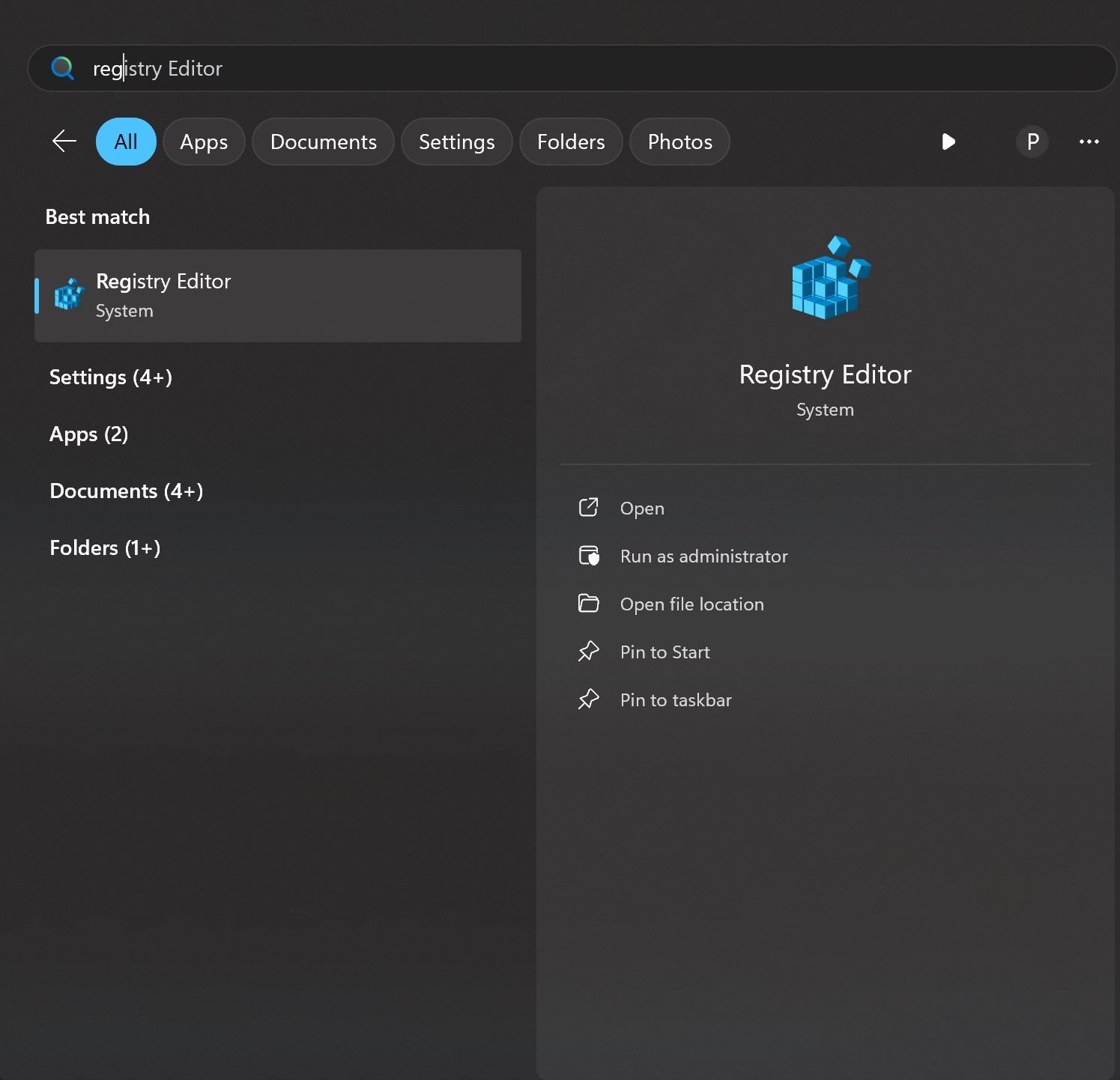
After that a User Account Control window will pop up. Click on yes and allow the app to make changes.
- After that navigate to below path in the navigation tree on the left side of the window.
HKEY_CURRENT_USER\Software\Microsoft\Windows\CurrentVersion\Search
- Once you are at the location, move with your mouse to the right side of the window and right-click into the empty space.
- Select New → DWORD (32-bit) Value
- Enter BingSearchEnabled for Value name:
- Make sure there is a 0 in Value data:

Method 2: Registry Script
Alternatively you can download the scripts I created to enable/disable Bing search in Start Menu.
Below you can see the contents of the disable script.
Windows Registry Editor Version 5.00

[HKEY_CURRENT_USER\Software\Microsoft\Windows\CurrentVersion\Search]
"BingSearchEnabled"=dword:00000000
Conclusion
It is that easy and quick to disable Bing Search in the Start Menu. If you have any questions or issues, please leave a comment below.

Peter is an award-winning photographer who travels all over the world to capture the beauty of our planet as well as the achievements of humanity. Follow Peter on his travel blog Gate to Adventures for more amazing places to go and explore.