Reading Time: 3 minutes
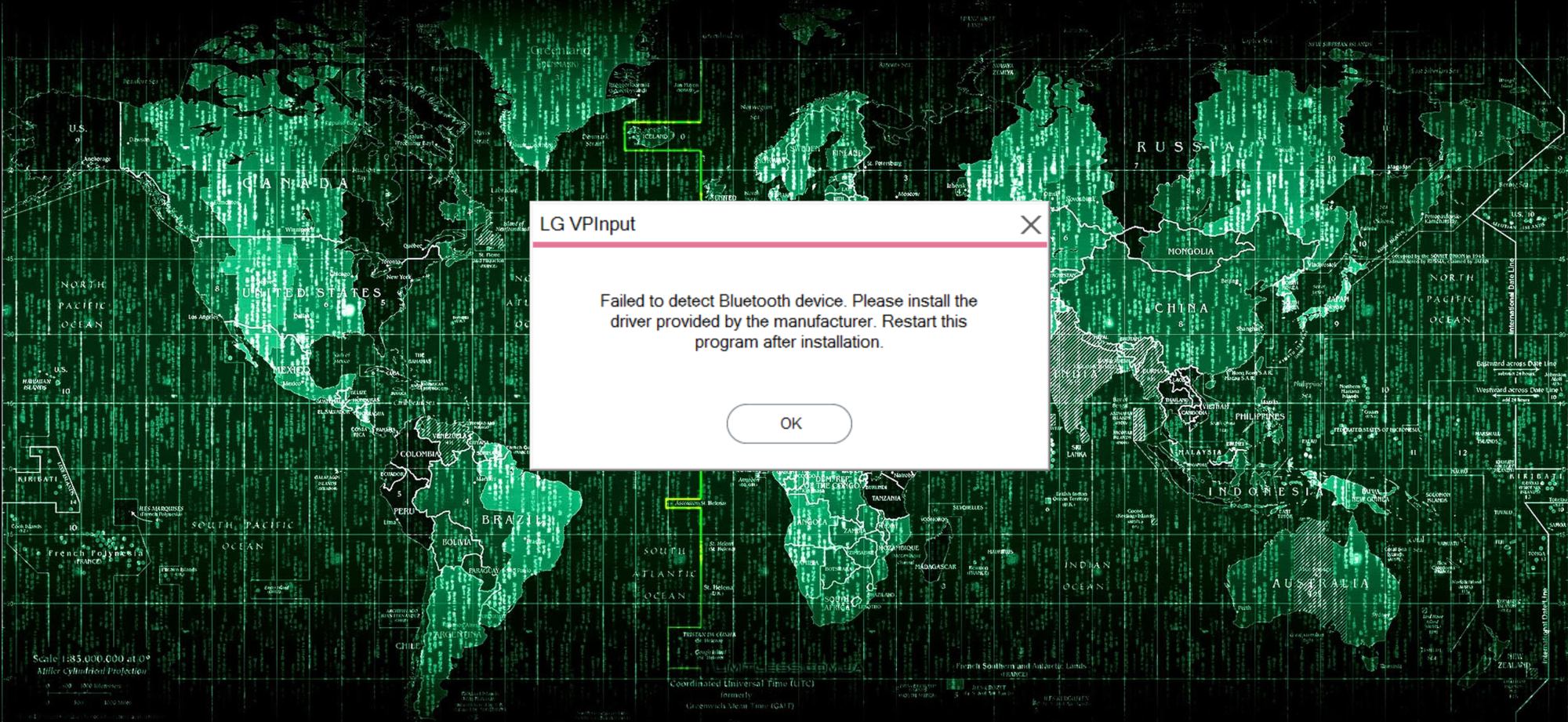
If you have a new PC with a high-resolution display, also known as high DPI screens, like 4k monitors, you probably have seen something like this.
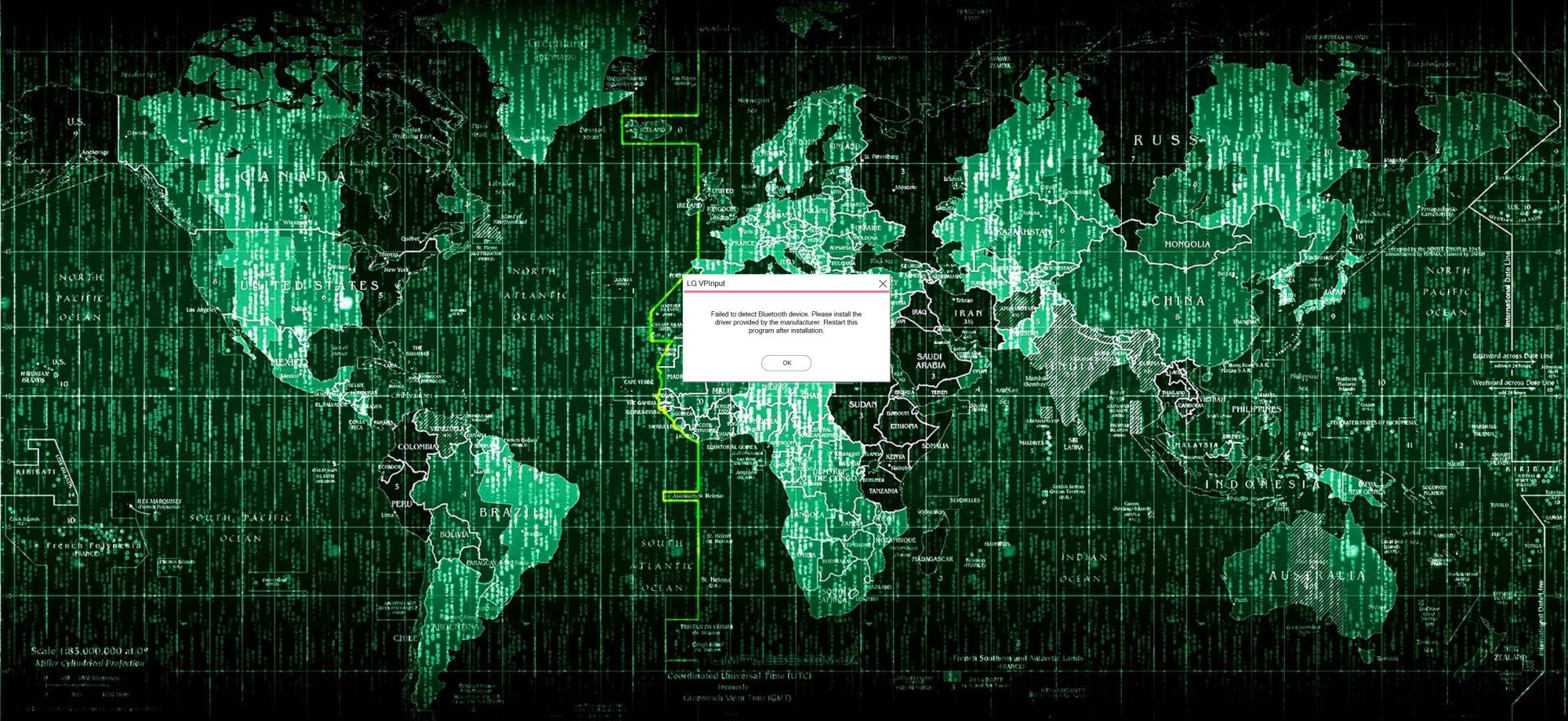
An App opens and you barely can see the icons or read the menu. This is a problem with the High DPI screens. When the app opens, Windows asks the app if it’s High DPI aware. The app probably replies with yes and in fact the app is not High DPI aware and you will end up with a screen like above. Especially photographers and creative people know that problem very well with Adobe Software. I have seen pictures of people trying to use Adobe Bridge and you couldn’t even read the menu.
Here is a small step by step guide to fix this issue.
Prerequisites
You need to meet the following conditions for an optimum success
- Administrator Privileges
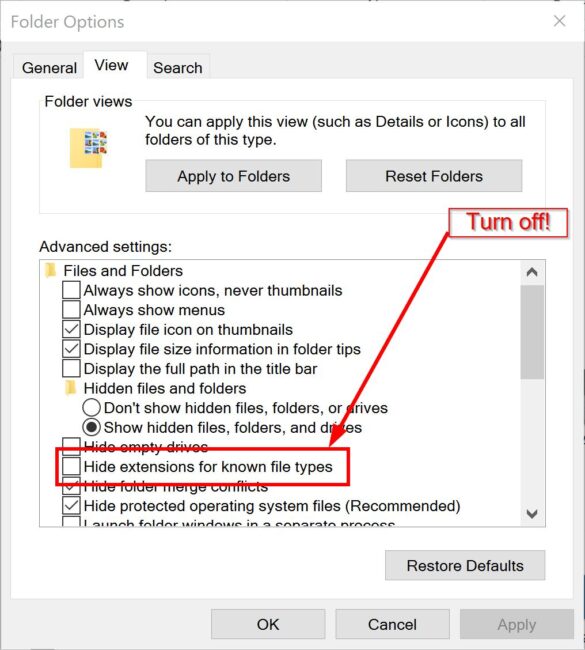
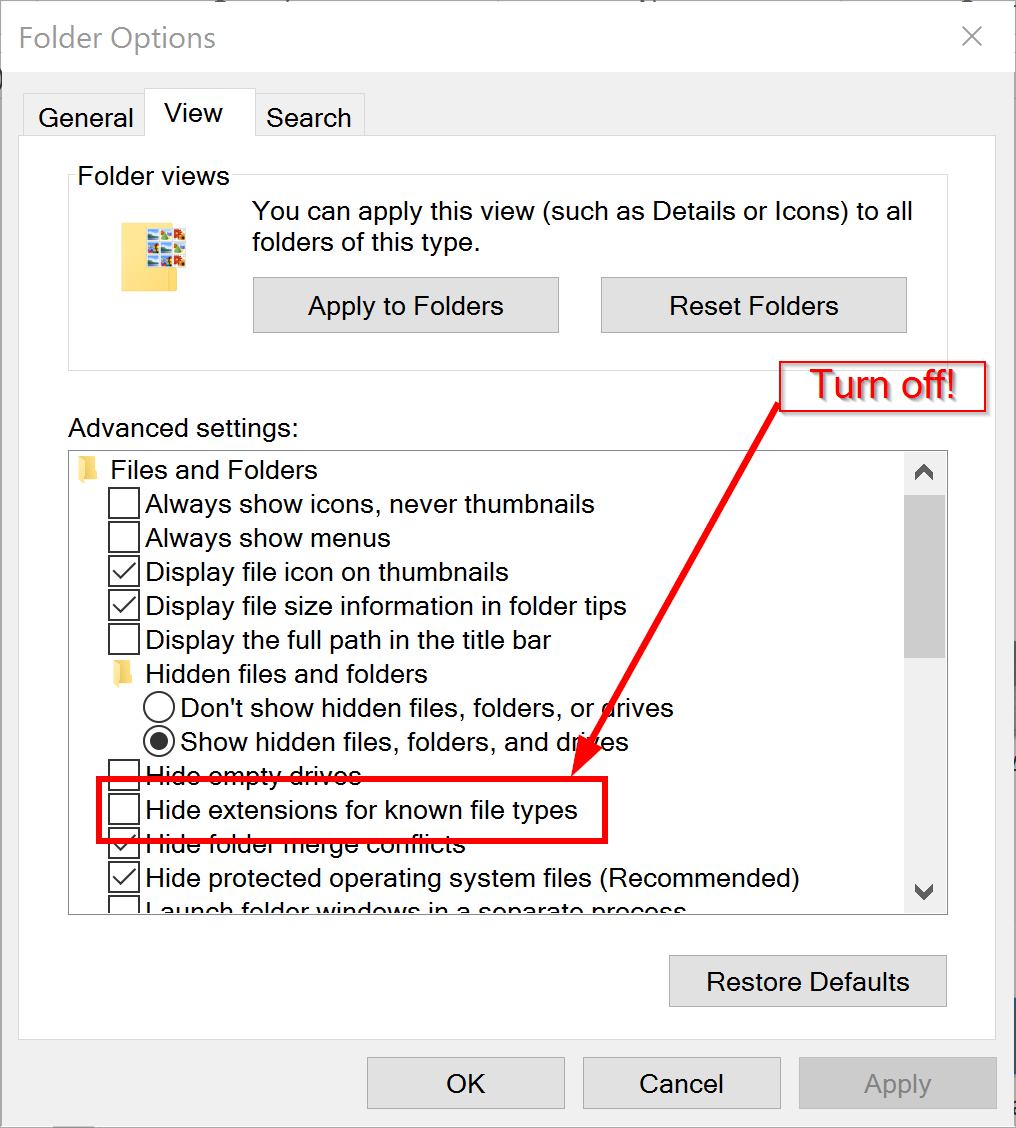
- Set to show file extensions in Windows
To show file extensions is very easy in Windows 10. Click the view tab and check “File name extension” box.

In previous Windows versions, you need to go to Folder Options, go to view and then uncheck the box as in the picture shown below.
Fixing the high DPI Issue
- Open your Registry Editor by pressing Windows Button + R, then type “regedit” and click Ok.
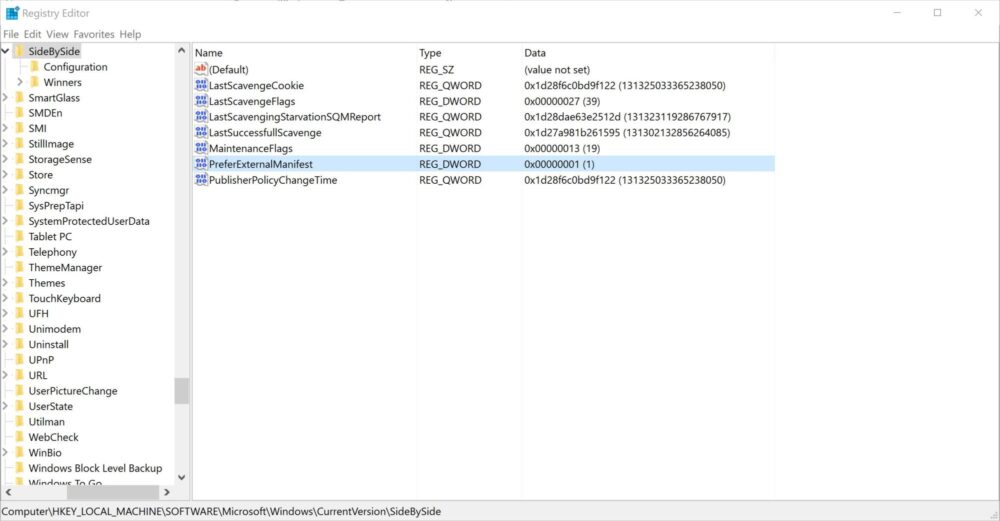
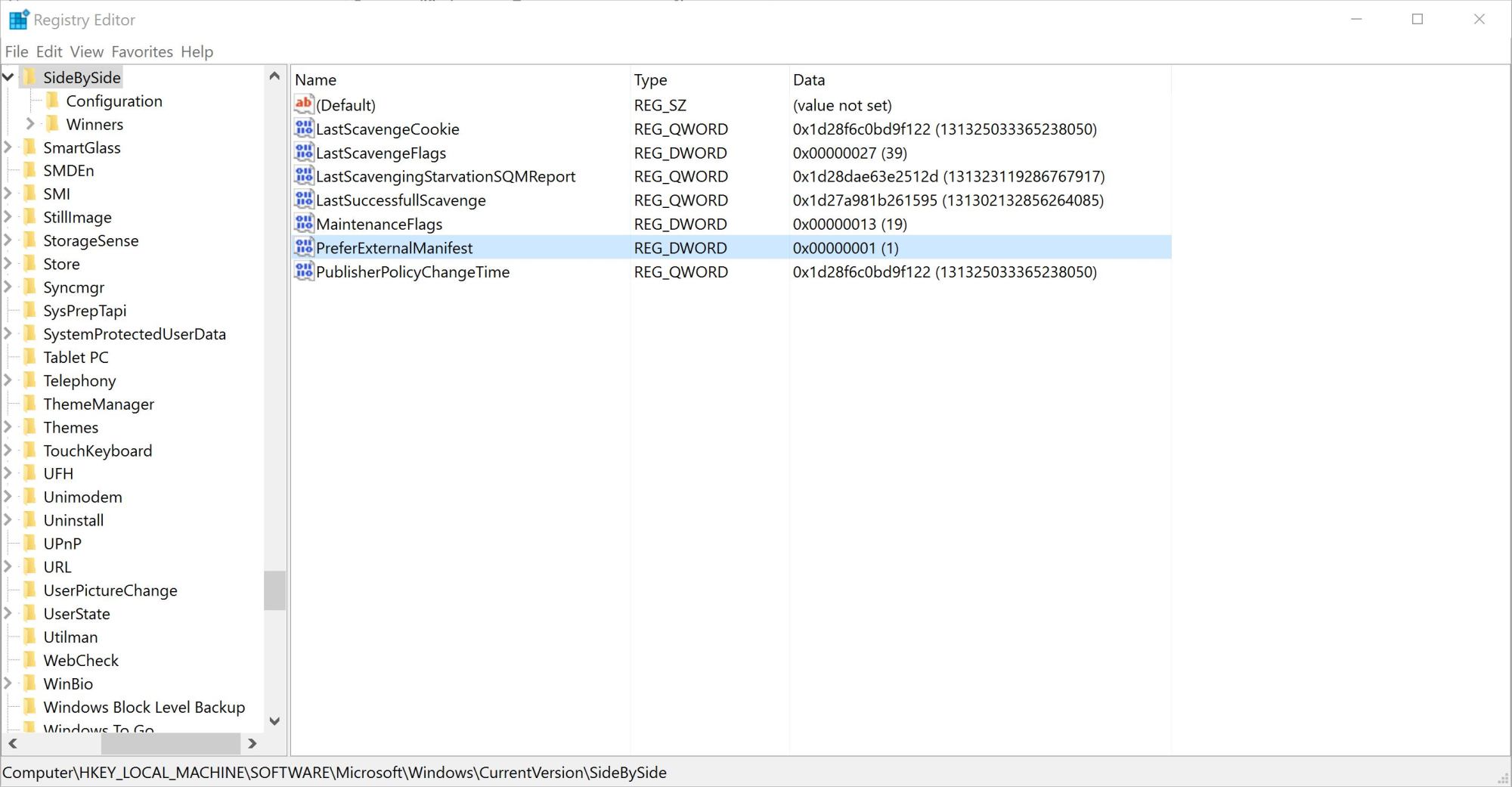
- Browse to HKEY_LOCAL_MACHINE > SOFTWARE > Microsoft > Windows > CurrentVersion > SideBySide
- Right Click, new DWORD (32-bit) value
- Type PreferExternalManifest and press Enter
- Double-Click PreferExternalManifest and set Value Data 1 and choose Decimal
- Click OK and exit the Registry Editor
- Download this manifest.txt file
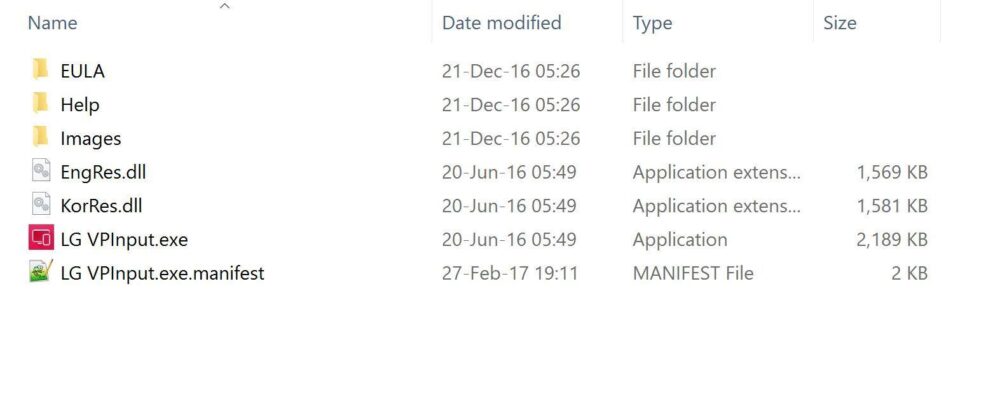
- Navigate to the software you have issues with and locate the .exe file. In my case, it was LG VPinput.
- Rename the manifest.txt file according to your program and follow this pattern: Program Name.exe.manifest. In my case, it was LG VPInput.exe.manifest
- Make sure the names of the manifest file matches a 100% the one of the software you try to fix. I recommend you to copy-paste the program name (including “.exe”) and add rename the previously downloaded manifest file.
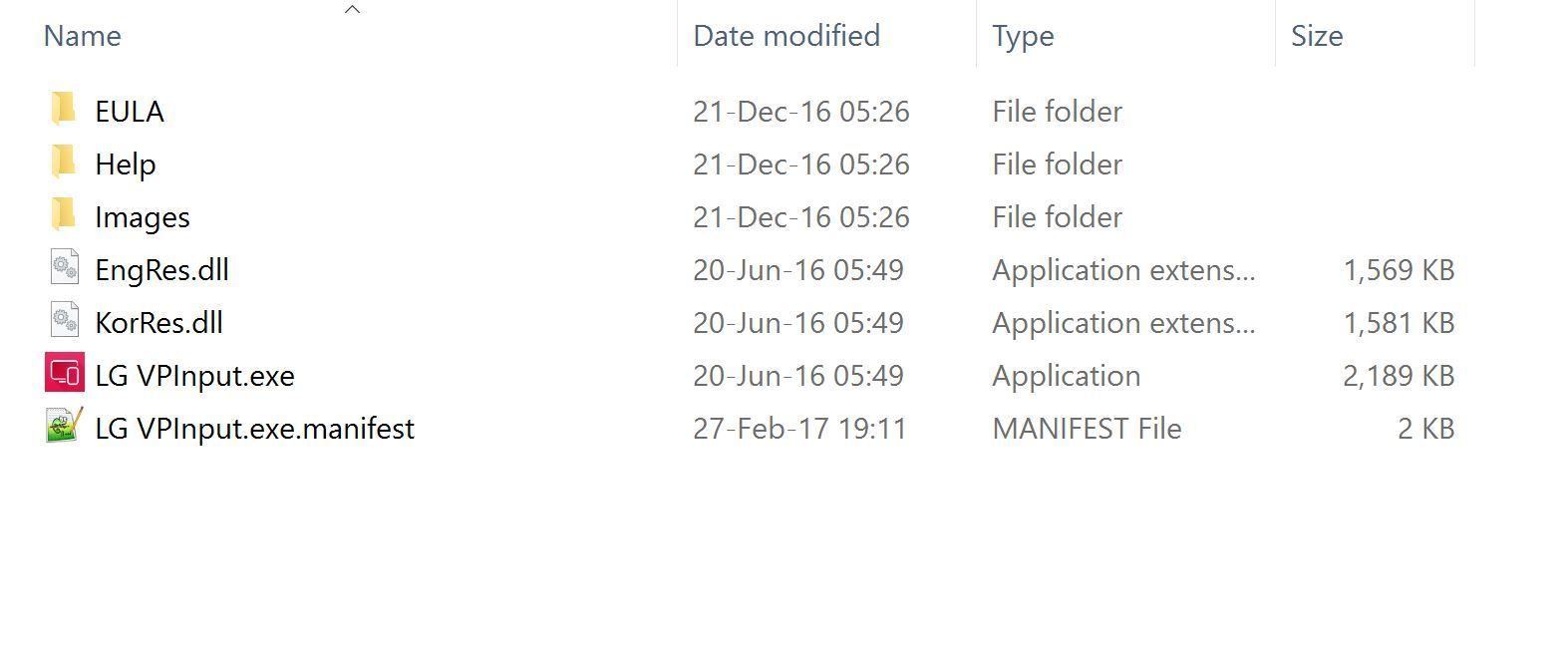
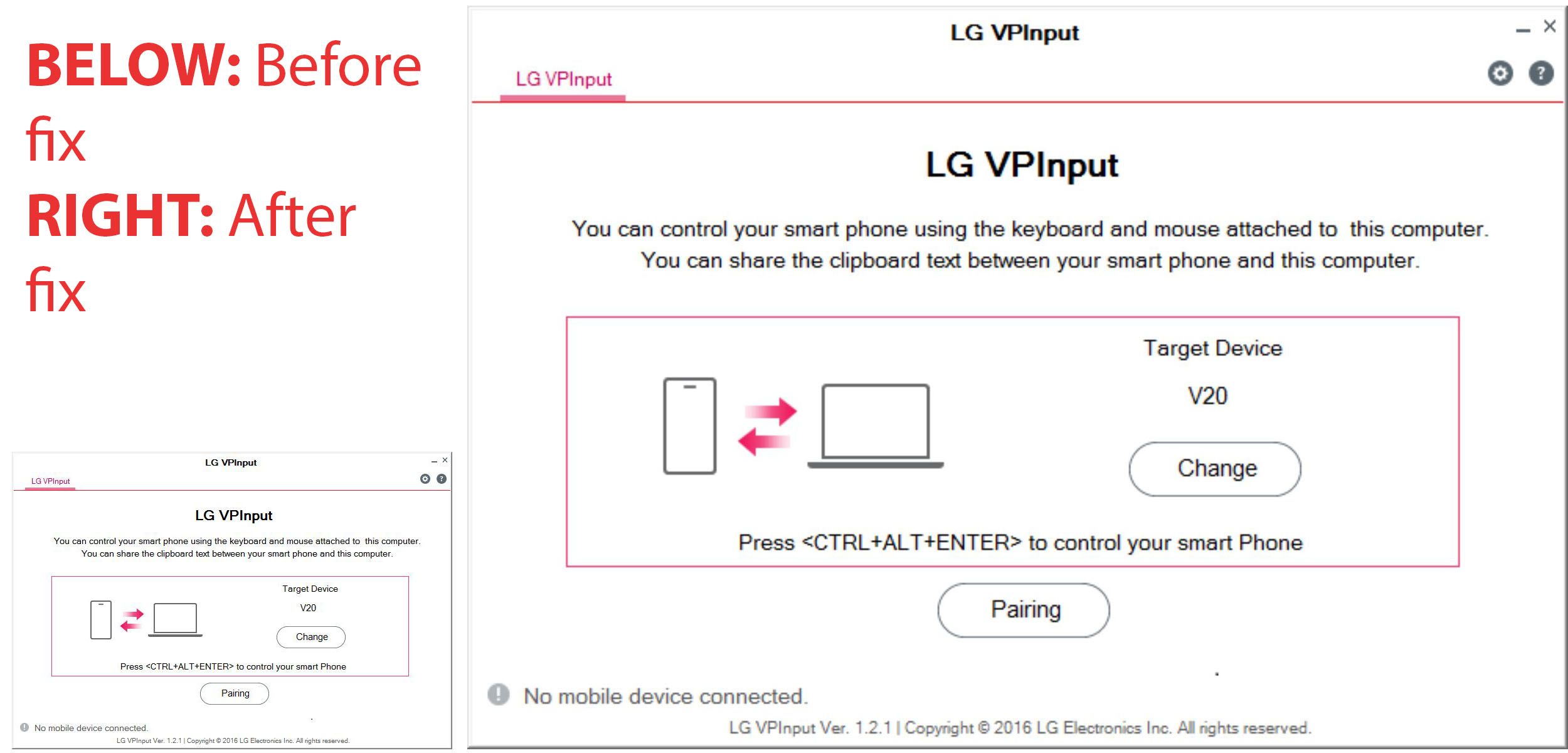
This is basically it. Now instead of a super tiny window, I have a window which I can actually read. See the example below.
 Below another comparison of before and after. Huge difference. Both of the pictures were a 1:1 screenshot and nothing else was changed.
FAQ
Follow the guide step by step to avoid any issues. If you have issues or questions regarding this fix, post it in the comments. It works without any issue on my Windows 10 machine.

Peter is an award-winning photographer who travels all over the world to capture the beauty of our planet as well as the achievements of humanity. Follow Peter on his travel blog Gate to Adventures for more amazing places to go and explore.