Reading Time: 2 minutes
Recently, i worked on a lot of photos inside of Photoshop and had to do a lot of brushing. I pulled my Wacom tablet back out to help me get the job done quicker and easier with the stylus rather than with the mouse.
The Problem
I had to do lots of masking with the Selection Brush tool. However, when I used my tablet and stylus, it wouldn’t show me the circle anymore which reflects the size of my brush. Every time I used this tool with my stylus, it just showed the regular Windows arrow cursor. Not very helpful as you can’t gauge at all how big your brush is and where it is. You know the center point but that’s it.
Weirdly enough, everything else seemed to work fine. The regular brush tool worked just as it was supposed to and when activating the touch sensitivity option, I was also able to use this feature. It was only when using the Selection Brush.
By the way, I am using a Wacom Intuos Pro M tablet which gives me the issues.
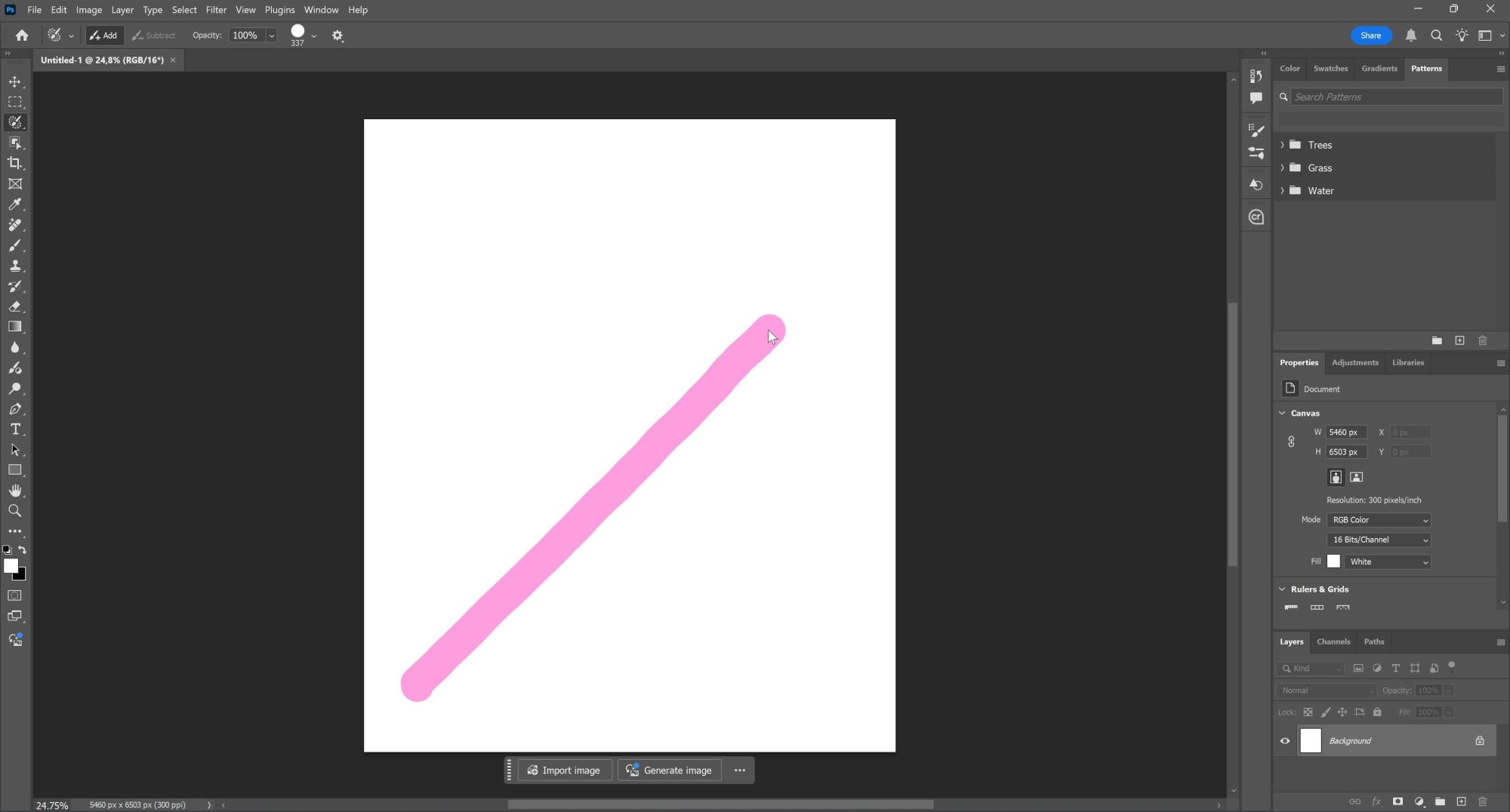
This is how it looked when using my pen on my tablet while using the Selection Brush. Besides the line I drew, I have no indication on how big my brush it and how much it would cover. It becomes a problem during complex masking.
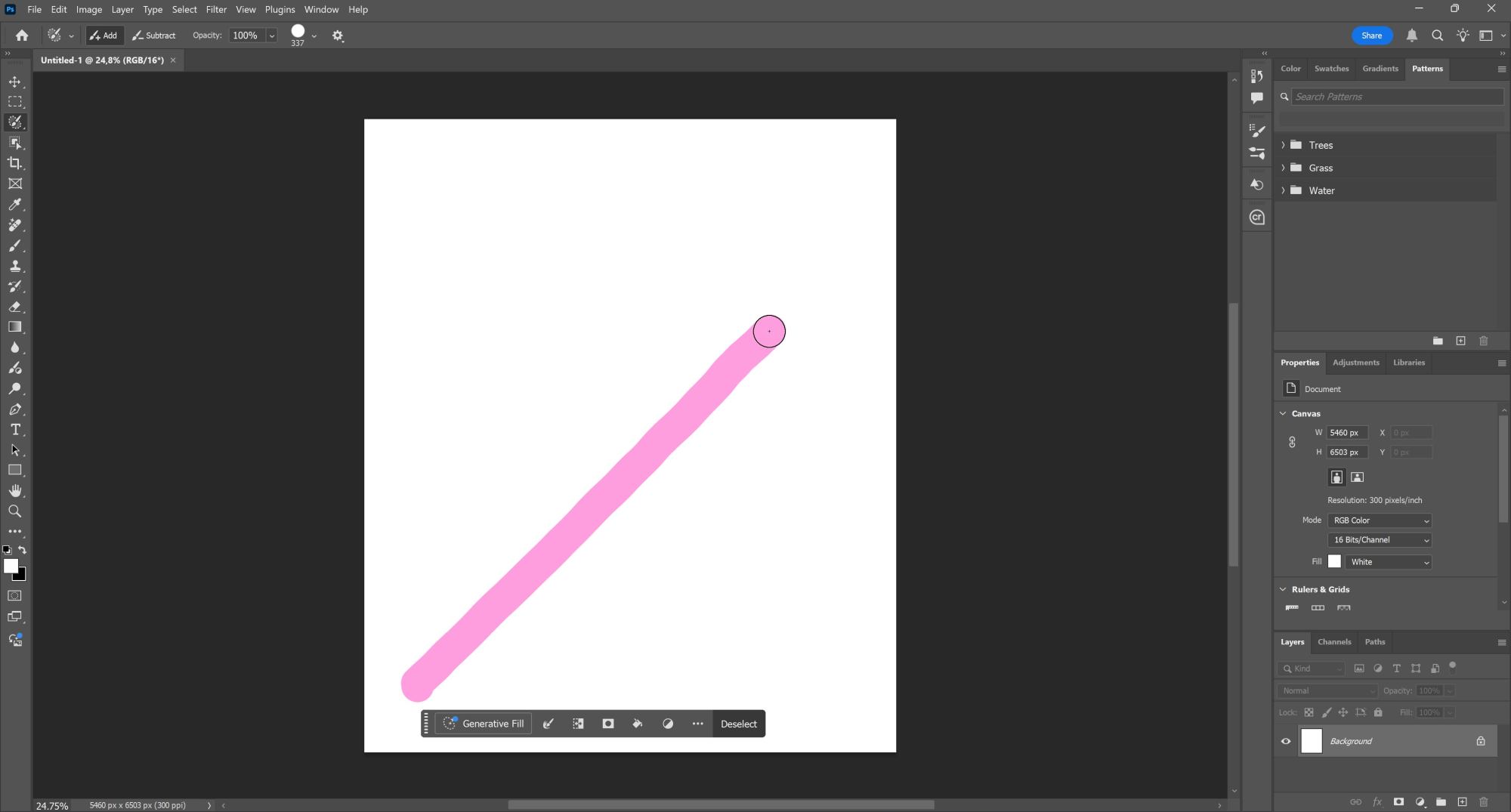
This is how it will look after the fix. You can see the circle which gives you the size of your Selection Brush tool.
The Solution
The fix for the problem is very quick and involves minimum effort. See the step by step guide below.
1. Navigate to the following directory
C:\Users\(YOUR USERNAME)\AppData\Roaming\Adobe\Adobe Photoshop CC (PHOTOSHOP VERSION)\Adobe Photoshop CC (PHOTOSHOP VERSION) Settings
Make sure you navigate to the directory which has your username and then look for the Photoshop Version you are using. If you have multiple version installed, you can add the fix to multiple installations as needed. It is the same procedure as outlined below. Just copy the file in the corresponding directory.
2. Inside this directory create a new txt file and call it PSUserConfig.txt
3. Open the text file and enter the following parameters:
#Use WinTab
UseSystemStylus 0
4. Start Photoshop or restart Photoshop and you are all set. It fixed all my problems and did not find any negative impact with other tools in Photoshop after this fix.
Conclusion
It took me only a few seconds to get the fix applied. It worked well for me. Let me know in the comments if it helped you or if you encounter any issues after you applies this fix.
After I applied this fix, it was a breeze to use the Selection Brush tool. No more issues in guessing how big your brush is and where the edges are. Perfect!

Disclaimer
You are doing this modification at your own risk. However, to revert back, it is as easy as just deleting the txt-file you just created. I am not responsible nor liable for any damage this might cause to your system or for any kind of data loss.

Peter is an award-winning photographer who travels all over the world to capture the beauty of our planet as well as the achievements of humanity. Follow Peter on his travel blog Gate to Adventures for more amazing places to go and explore.