Reading Time: 4 minutes
Easter Eggs in Adobe Creative Cloud Apps
Easter is coming and I want to show you some easter eggs hiding in many of the Adobe Creative Cloud apps you use daily and might not even know. It’s time to go on a hunt and find them all. Programmers are known to hide funny gimmicks in software which are mostly undocumented. Below I will list a few I have found to be still working in 2024.
If you know of any additional easter eggs, let me know in the comments and I will extend the list for everyone to enjoy.
Adobe Photoshop
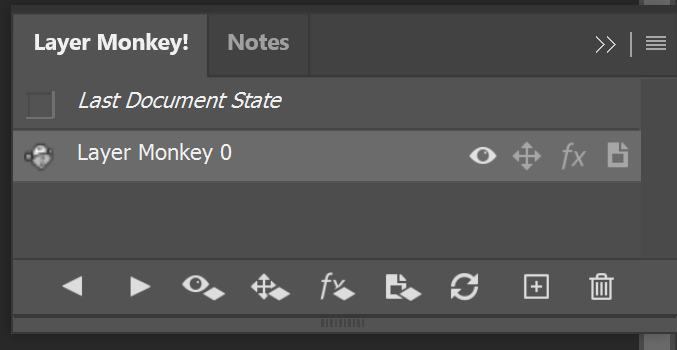
Layer Monkey
- Open the Layer Comps window (Window – Layer Comps)
- Create a new layer comp and name it “Layer Monkey 0“.
Now the symbol in front of the layer comp will change into a monkey head and the Layer Comps window will be renamed to “Layer Monkey!” You might have to close and re-open the window to see the new title.
Tested with
- Adobe Photoshop 2024 (25.6.0)
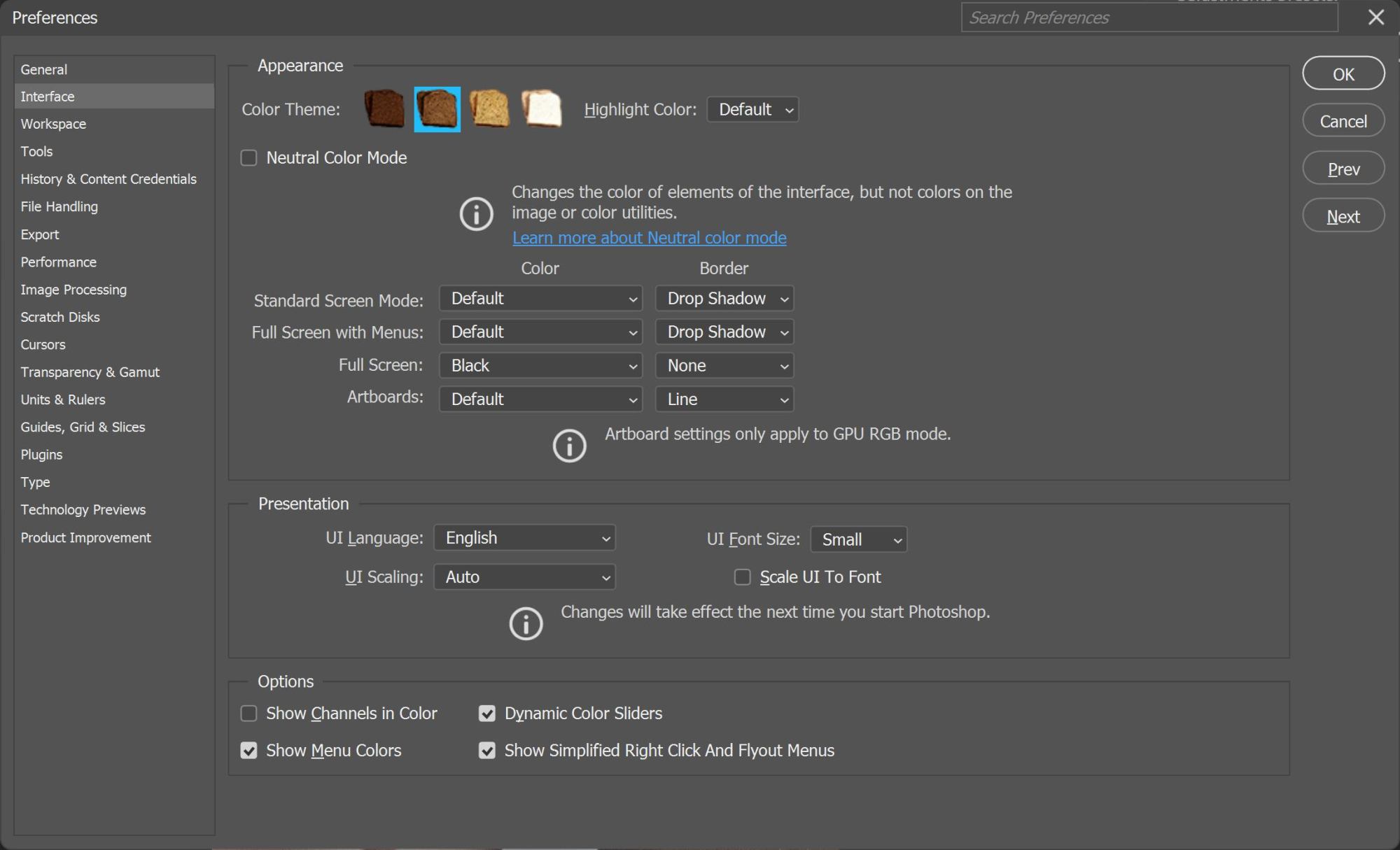
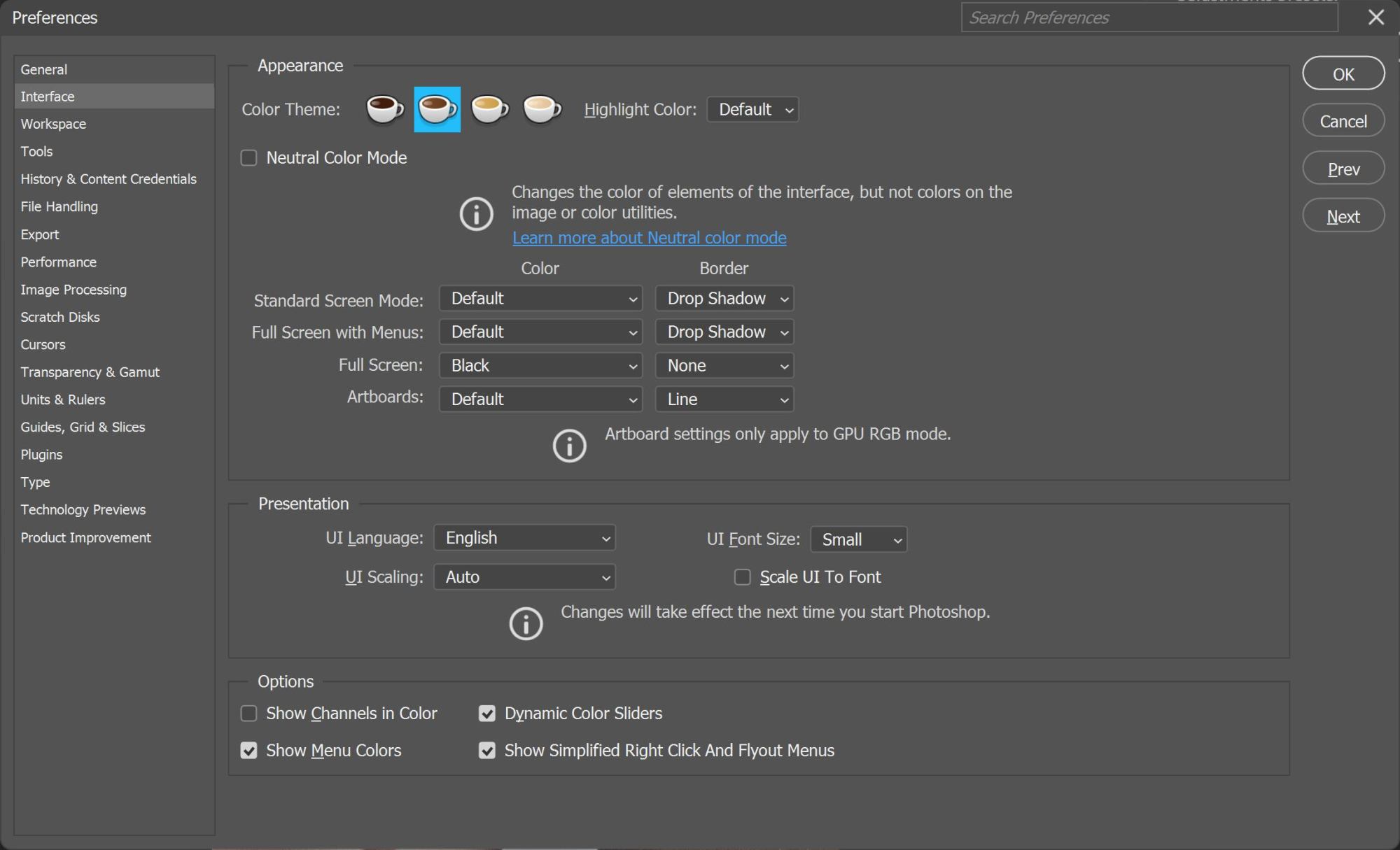
Coffee or Toast?
- Open Edit-Preferences-Interface
- Hold Ctrl+Alt+Shift and click on one of the four squares next to Color Theme.
- Repeat to switch between Toast, Coffee and standard Color Squares.
Once you have either selected Toast or Coffee symbols, you can switch between the two of them very easily by just holding Ctrl and click on one of the toast or coffee icons.
Too switch between your selected icon (Toast or Coffee) and the the standard squares, hold Alt+Shift and click on the icons.
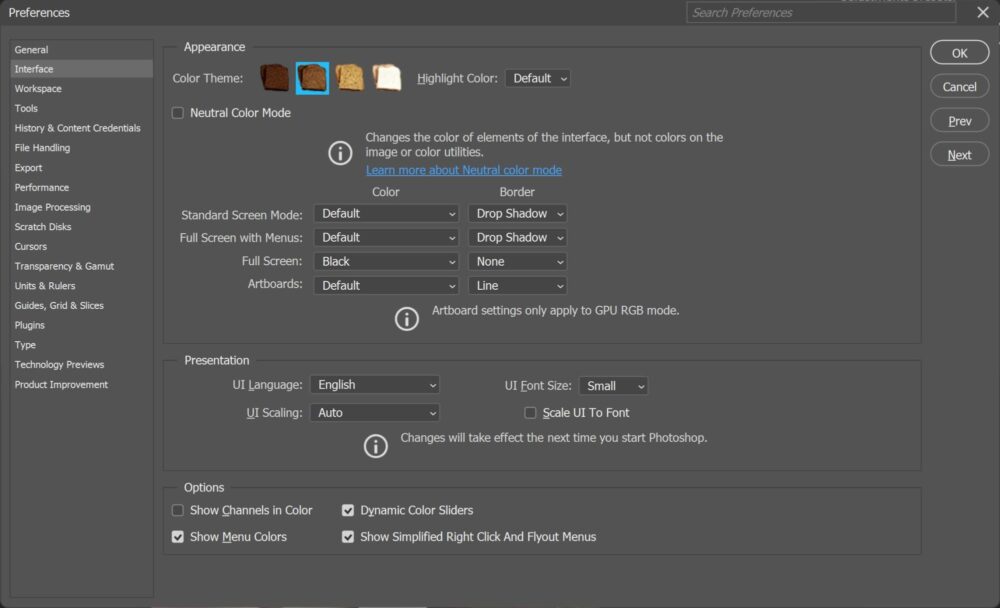
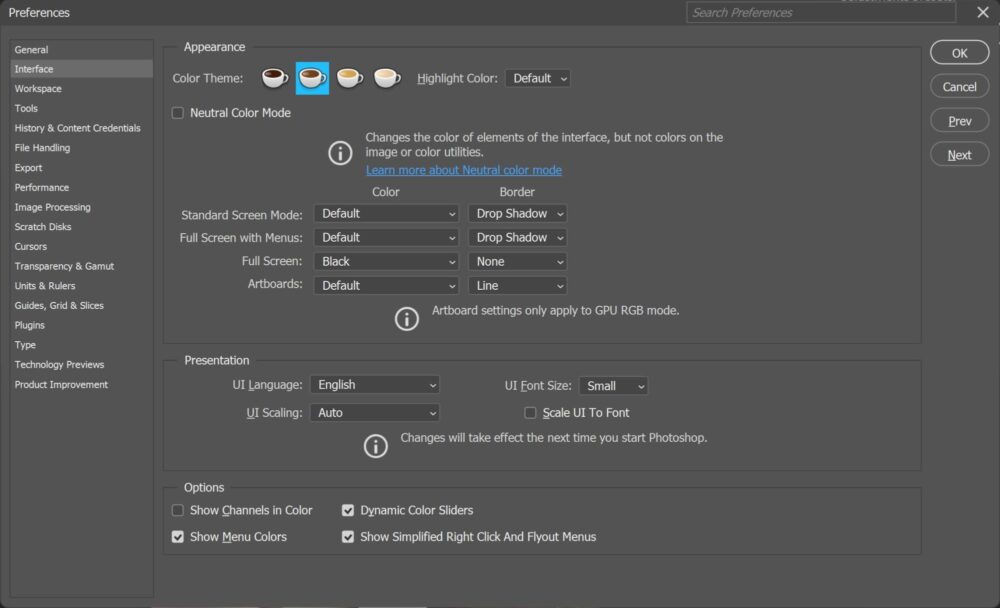
Tested with
- Adobe Photoshop 2024 (25.6.0)
Toolbar Banana
- Open Edit-Toolbar
- Hold Shift and click on Ok. The three dots at the end of the toolbar will turn into a banana.
- Hold Ctrl and Click on Ok to remove the banana and turn back to normal.
Tested with
- Adobe Photoshop 2024 (25.6.0)

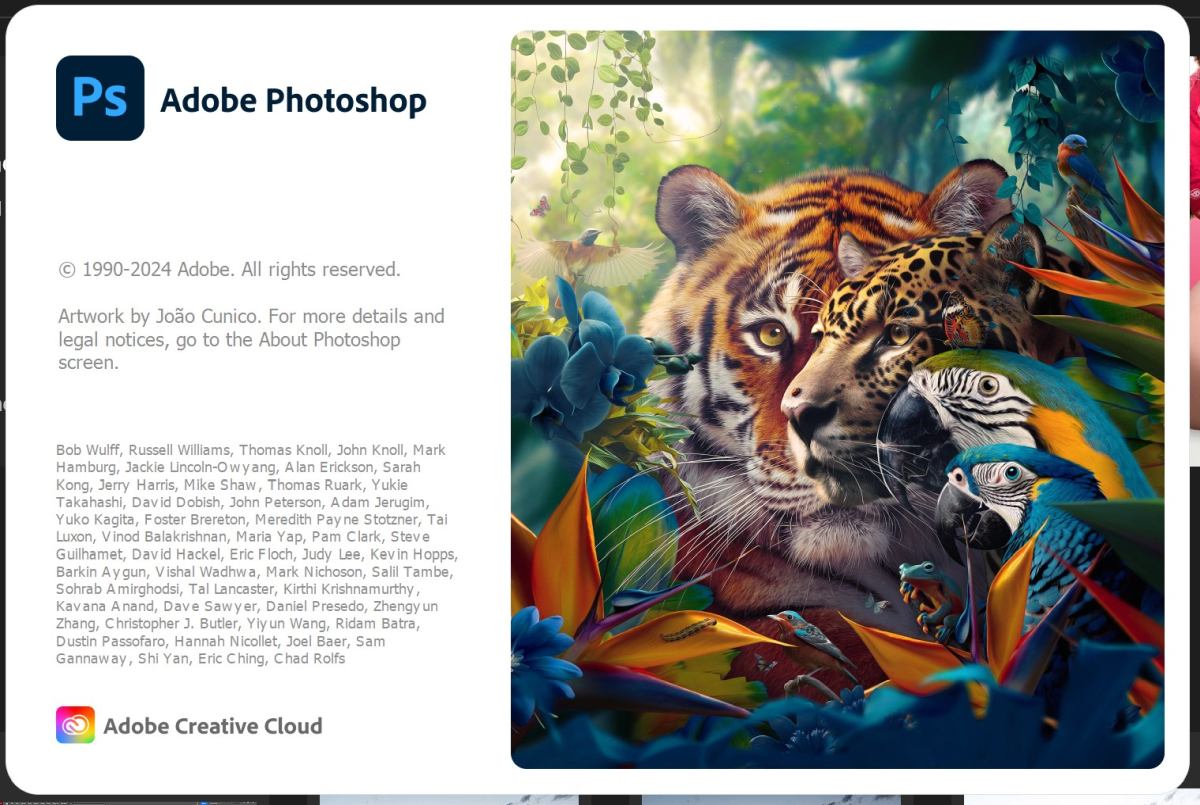
About Photoshop Splashscreen
When you open Photoshop you see a splash screen while the app loads. To see this splash screen again do the following.
- In the Menu Bar on top, click on
- Press and hold the Shift-Key and then click on About Photoshop
Tested with
- Adobe Photoshop 2024 (25.6.0)
Adobe Photoshop Lightroom Classic
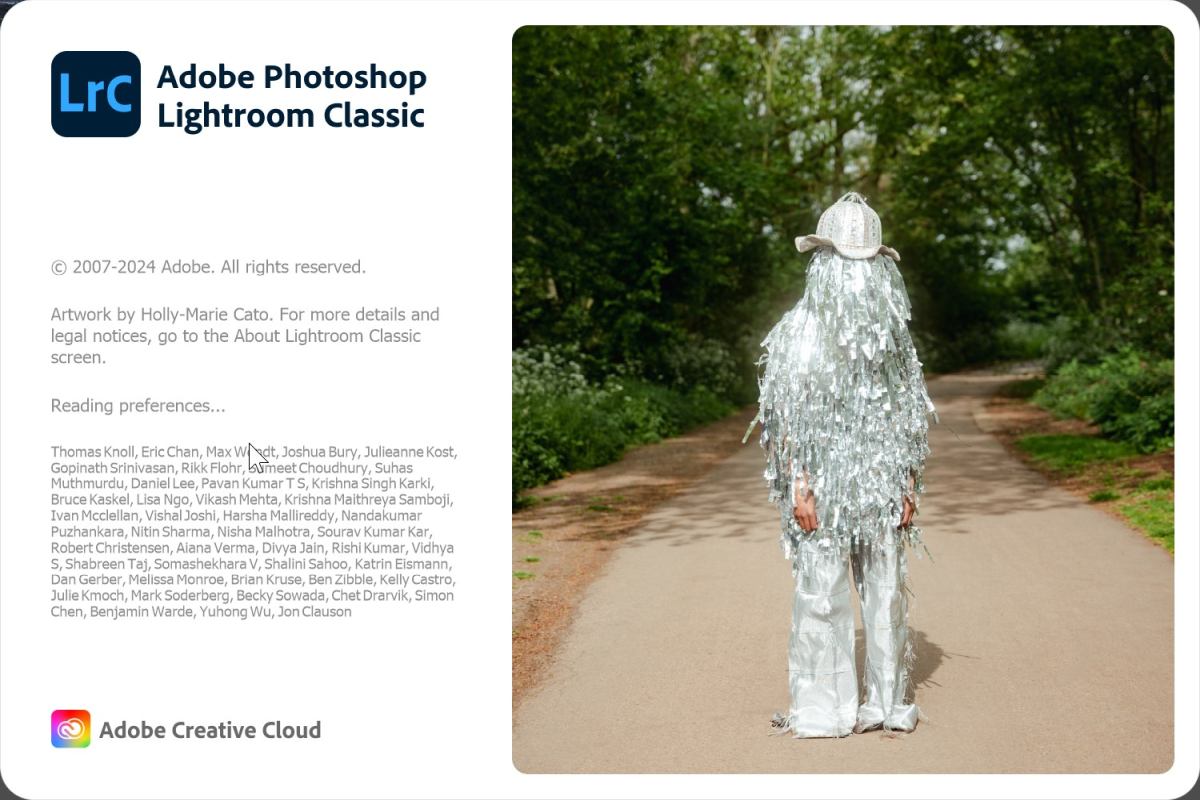
Secret Splash Screen
Want to see the Splash Screen again which appears when you open Lightroom Classic? Do this…
- Press and Hold the Alt-Key
- Click on Help in the top menu bar and then About Lightroom Classic…
Tested with
- Adobe Lightroom Classic 2024 (13.2)
Adobe Photoshop Lightroom
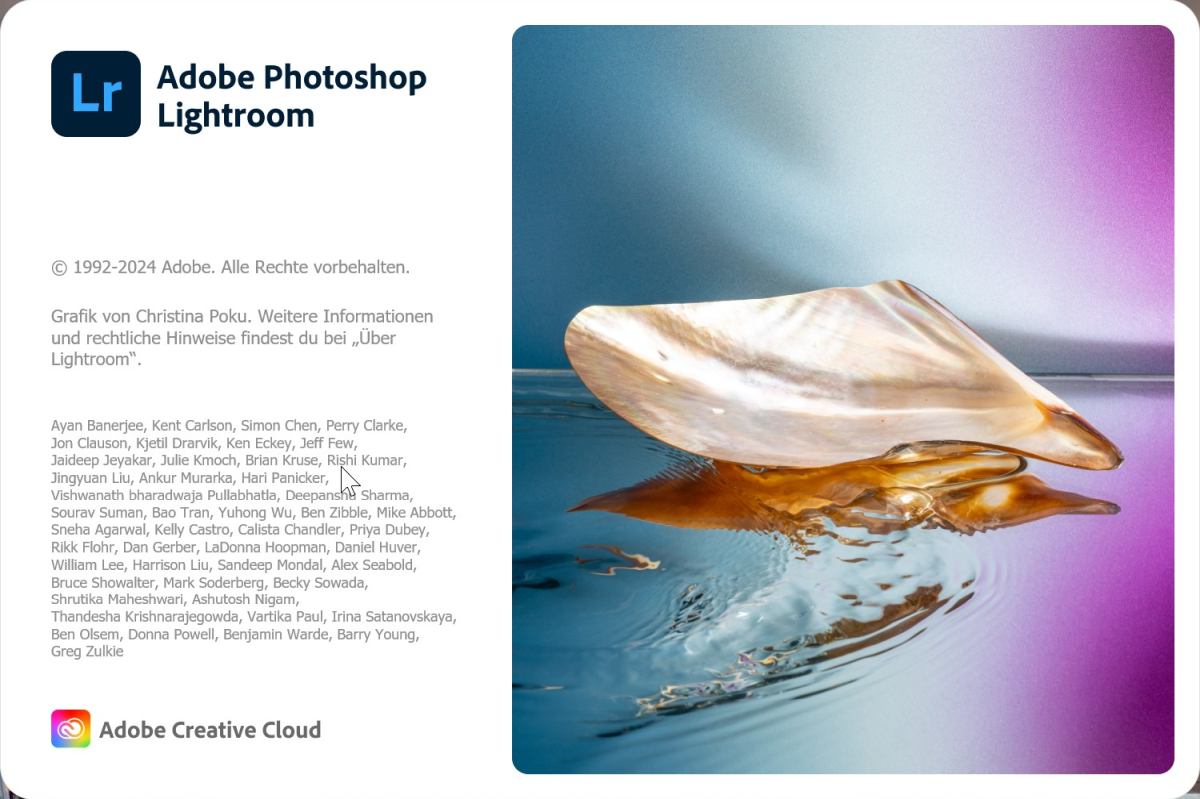
Secret Splash Screen
Want to see the Splash Screen again which appears when you open Lightroom? Do this…
- Press and Hold the Alt-Key
- Click on Help in the top menu bar and then About Lightroom…
Tested with
- Adobe Lightroom 2024 (7.2)
Adobe InDesign
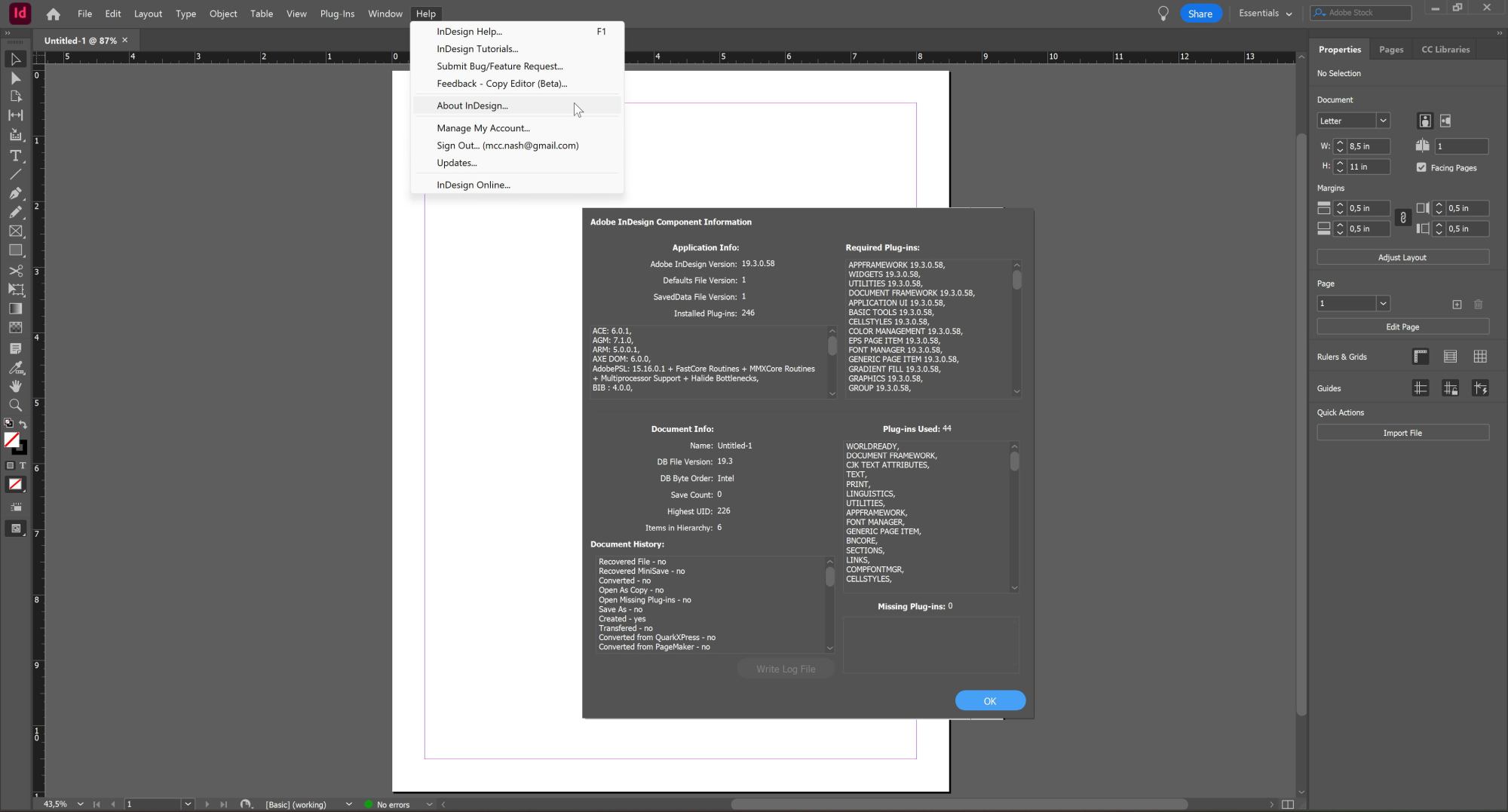
Component Information
- Click on Help in the Menu bar
- Press and Hold Ctrl and click on About InDesign
This brings up some debug information of InDesign
Tested with
- Adobe InDesign 2024 (19.3)
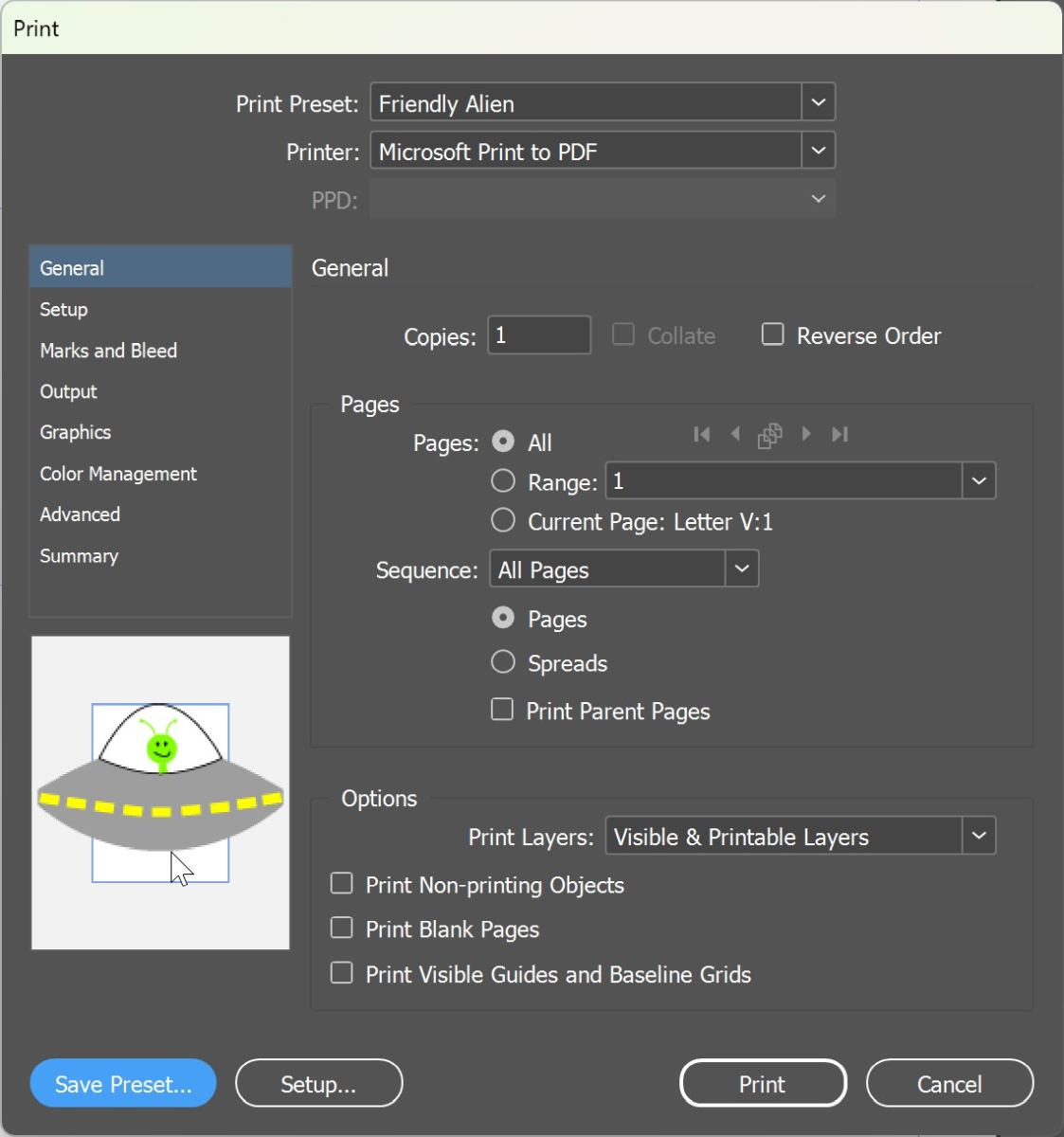
The Friendly Alien
- You must have InDesign open containing printable things
- Open the Print Menu (File – Print) or press Ctrl+P
- Create a new Print Preset and name it “Friendly Alien” and save the preset.
- Make sure you have the Friendly Alien preset selected and then click in the preview window in the lower left corner of the window.
- Wait for a few seconds and watch the alien appear
Tested with
- Adobe InDesign 2024 (19.3)
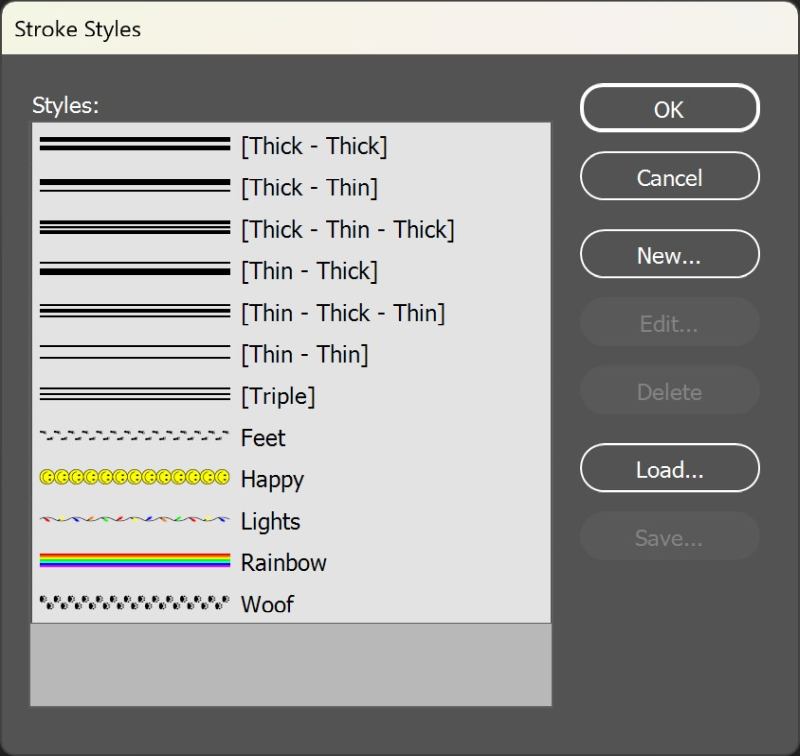
Stroke Styles
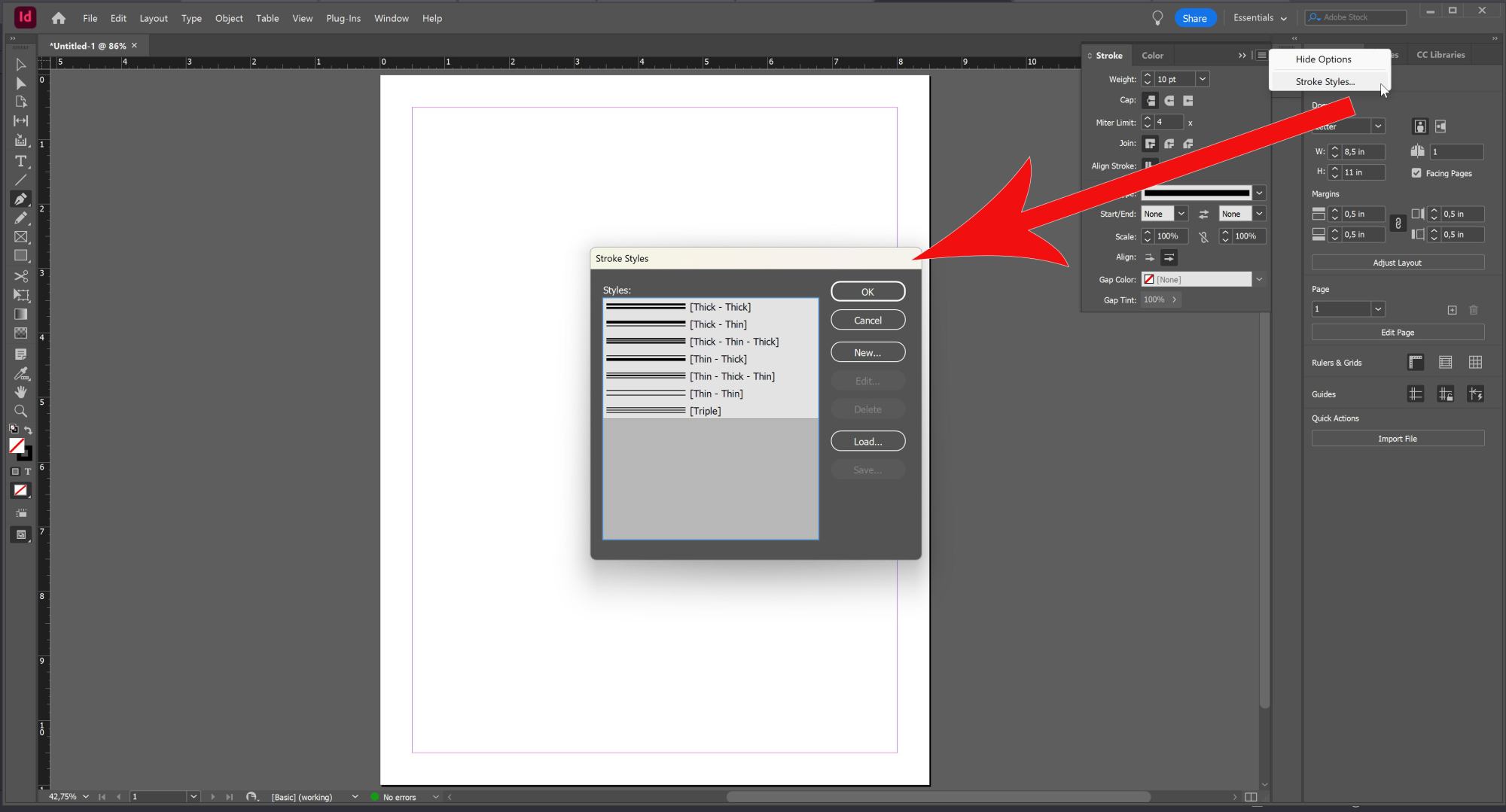
Create cool new stroke styles in InDesign. To do this, open the Stoke Styles Panel by clicking on Window in the top menu bar and then click on Stroke or press F10.
Once the panel is open, click on the menu button on the top right corner of the panel and select Stroke Styles…
To see the effect of the styles, you might want to set your Weight to more than 1pt.
In the new window click new and follow the instructions below…
Happy
Name: Happy; Type: Dash
Rainbow
Name: Rainbow; Type: Stripe
Woof
Name: Woof; Type: Dash
Feet
Name: Feet; Type: Dash
Christmas Lights
Name: Lights; Type: Dash
Additional Tip
If you want to have these styles available for all documents, open InDesign but don’t open a document. Just follow above steps and the stroke styles will be available in every future document. You can always delete them later on.
Tested with
- Adobe InDesign 2024 (19.3)
Adobe Premiere Pro
Secret Splash Screen
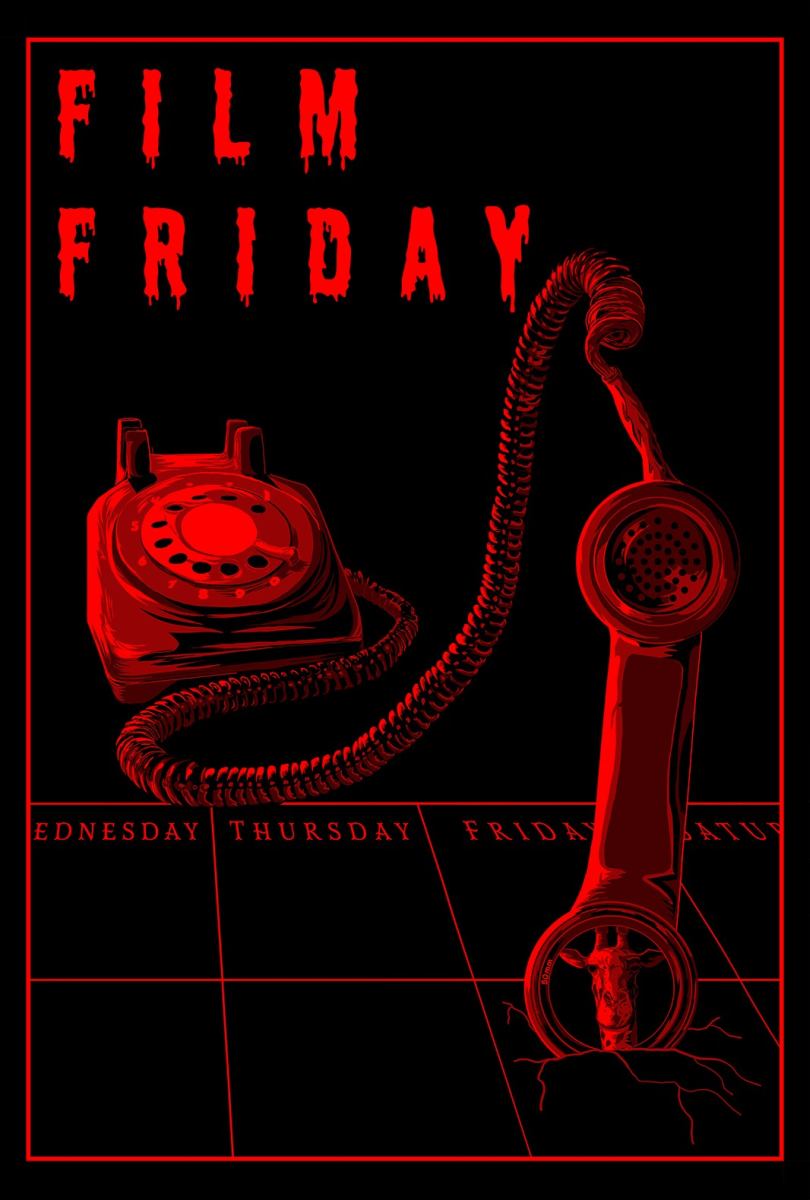
Seems every version of Premiere Pro comes with a different graphic. To access it, do the following…
- Click on Help in the top menu bar.
- Press and Hold either the Shift or Ctrl-Key and click on About Premiere Pro…
Tested with
- Adobe Premiere Pro 2024 (24.3.0)
Adobe After Effects
Secret About Screen Video
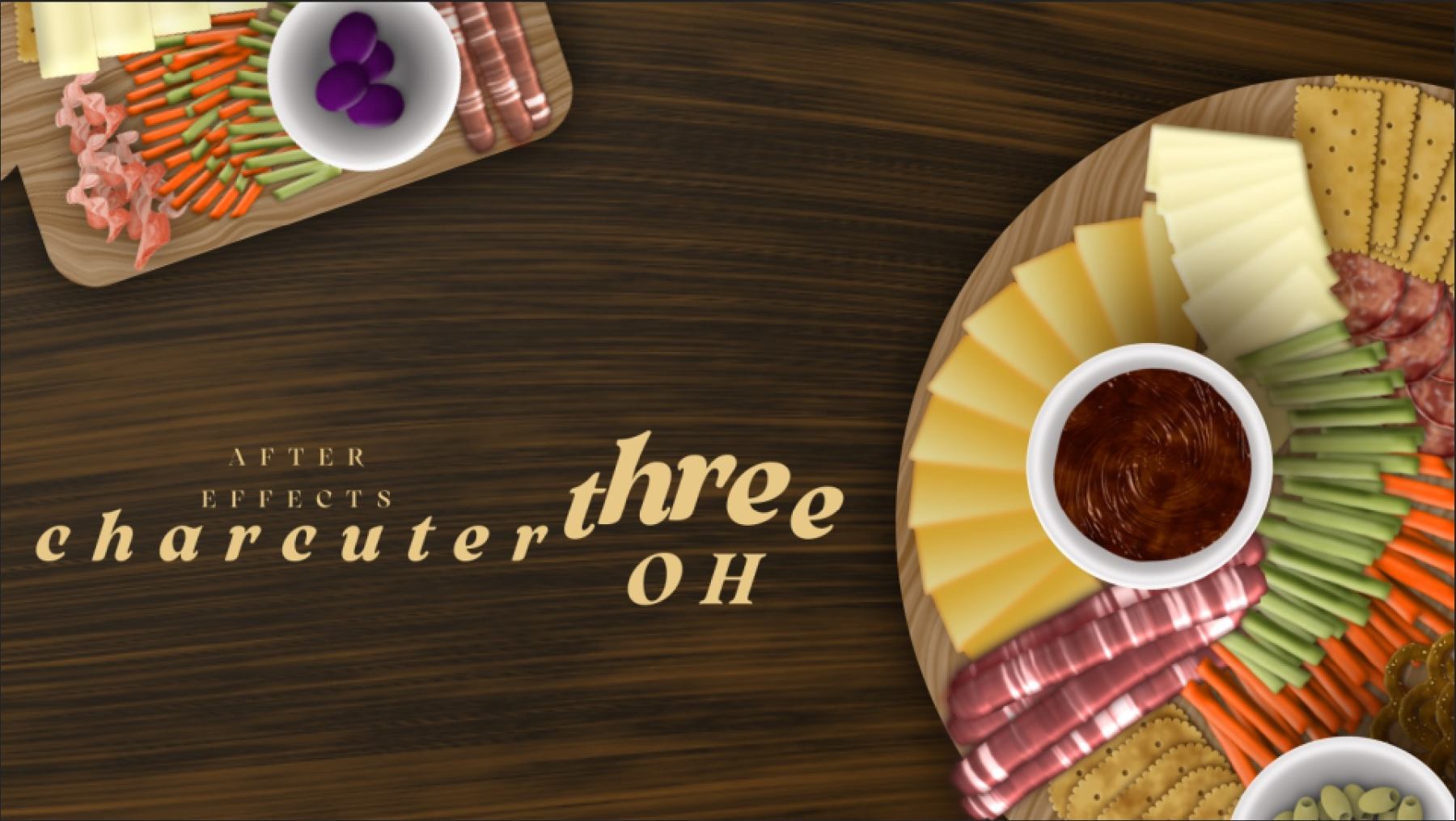
It looks like every version of After Effects comes with a different version of this. To access it, do the following…
- Press and Hold the Alt-Key
- Click on Help in the top menu bar and then on About After Effects
- A new project will open with the fancy About After Effects Video
You have to be connected to the internet for this one to work.
Tested with
- Adobe After Effects 2024 (24.3.0)
Hear the Sheep
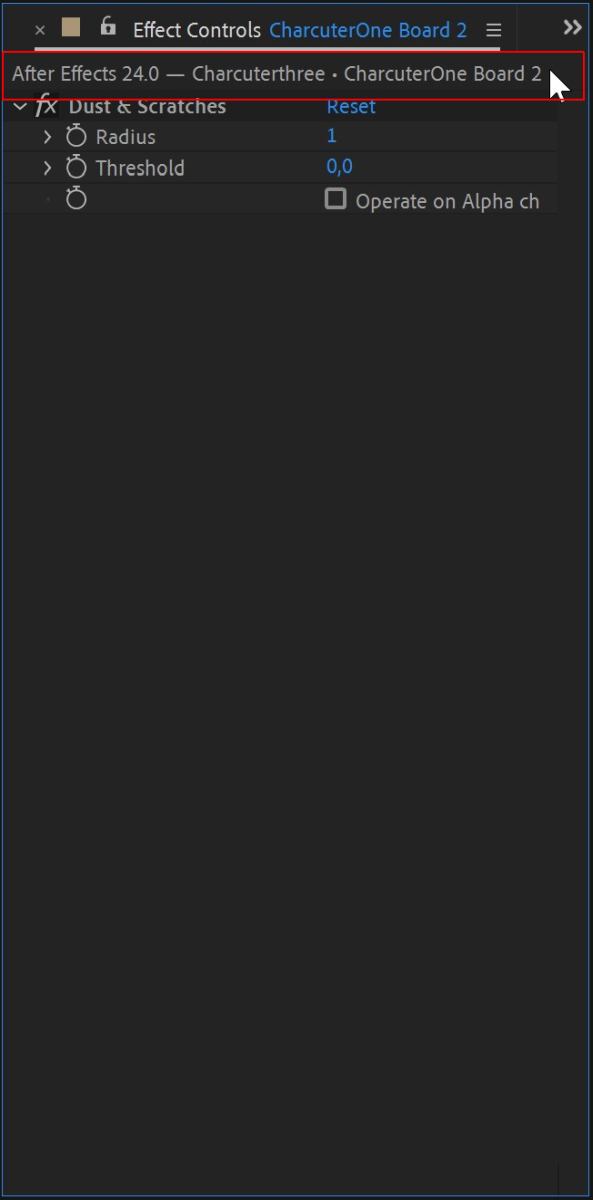
For this one, you have to turn your sound on. It is an audio-only easter egg.
You need a project open with any effect. If you don’t have one, just add any effect and then head to the effects control panel.
Hold the Shift-Key and click on the line right above the first effect. See image…
Tested with
- Adobe After Effects 2024 (24.3.0)

Peter is an award-winning photographer who travels all over the world to capture the beauty of our planet as well as the achievements of humanity. Follow Peter on his travel blog Gate to Adventures for more amazing places to go and explore.