Reading Time: 3 minutes
How to Fix “Extension Not Signed Properly” in Photoshop

After a long time of not using one of my plugins in Adobe Photoshop, I got an error message I have never seen before. Photoshop is telling me that the extension is not signed properly and therefore won’t work. For me the issue was with Easy Panel 2. The plugin name might differ for your plugin(s).
Depending on the plugin, this can even shutdown Photoshop completely and render it useless.

I know that the plugin was working before and now something has changed. Adobe wants you to use the Plugin Manager in the Creative Cloud Desktop app rather than copying the files in the right directories on your device.
Generic Solutions
Adobe put out a help article on their website, which wasn’t very helpful at all. Their solution boils down to “Have you tried turning it off and on again?”
I hate that Adobe puts that behind a password wall. Why do you have to login to view a help article? We have to waste valuable time just to read a simple, almost meaningless article. The above link redirects to this help article.
If you want to save time here are Adobe’s suggestions
- Make sure Photoshop is up to date
- Re-Install the plugins and whitelist it from your Anti-Virus software if it gets quarantined.
- Delete Photoshop and all old plugin files. Re-Install everything from scratch.
These are some steps you can take. But you can also try the solutions below for Windows and MAC. As mentioned, I knew that my plugin was working before, and I haven’t used it in a while but did some Photoshop updates in the meantime.
Fix for Windows
Notice: You need administrator privileges to do this.
- Open the registry editor by pressing the Windows-key and then typing “regedit” (without the quotation marks).
- You might get asked if you want to allow this app to make changes to your computer. Say Yes.
- In the new window navigate to
Computer\HKEY_CURRENT_USER\SOFTWARE\Adobe\CSXS.11
CSXS.11 might be different if you have a newer or older version of Photoshop installed.CSXS.11 is for Photoshop 24
CSXS.12 is for Photoshop 25There might be some other CSXS.xx folders in your registry. If you have multiple versions of Photoshop installed, repeat the steps below for every version. If you only have the newest version of Photoshop installed, use the folder with the highest number.
- Right click in the empty window on the right and select
New – String Value

- Name the new string “PlayerDebugMode” (without the quotation marks)
- Double click the new string and enter the number 1 in Value data
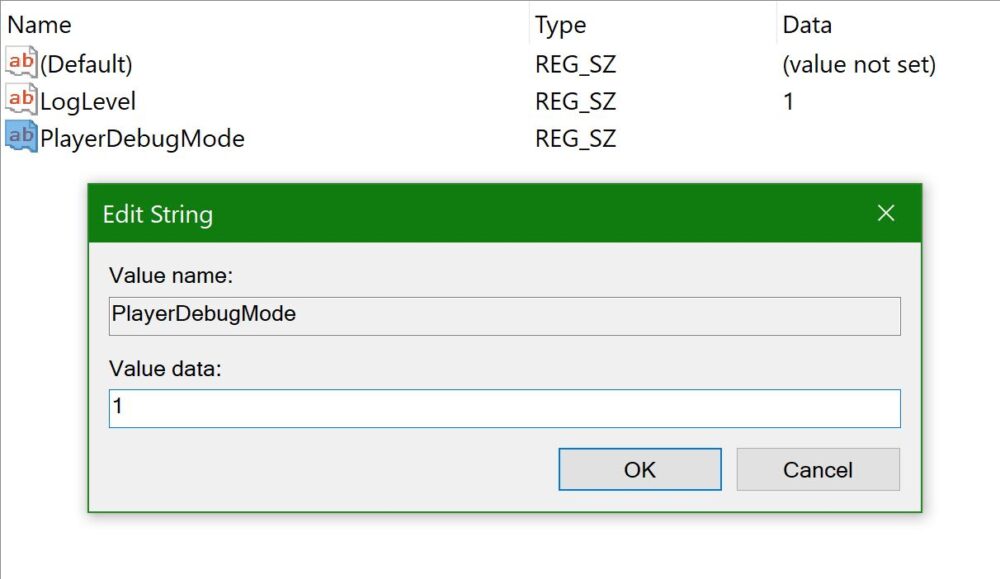
- Close and/or restart Photoshop and your plugins will work again like nothing ever happened.


Fix for MAC
Warning: I don’t have a MAC and I am not able to verify this fix. Proceed at your own risk. However, multiple users have commented below that this worked for them. Check out the comments for more information on what Apple device and OS it works.
For Photoshop 2022 and 2023
- Open the Terminal app on your MAC
- Copy & paste the following command into the Terminal:
defaults write com.adobe.CSXS.11.plist PlayerDebugMode 1 && killall -u `whoami` cfprefsd - Press Enter and close the Terminal. Then open/restart Photoshop
For Photoshop 2025
- Follow above steps but use the following command in Terminal: defaults write com.adobe.CSXS.12 PlayerDebugMode
Disclaimer
You are proceeding at your own risk. Make sure you read the steps first before you proceed. I am not responsible for any damage to your device or data. I can however confirm that the Windows Fix worked for me without any issues.
Let me know in the comments if you have any questions or if it worked for you.

Peter is an award-winning photographer who travels all over the world to capture the beauty of our planet as well as the achievements of humanity. Follow Peter on his travel blog Gate to Adventures for more amazing places to go and explore.